Print out this page and use it for reference until you become comfortable with the procedure.
last revised: 12/28/00
1) The assignment of questions is located in your class Schedule page under the Groups columns for each week inside Cranfordville.2) The listing of the questions is located under the Topics page.
a) This can be accessed directly from the class Schedule page in the hyperlink in the third column from the left for each week.
b) Click on this hyperlink in order to go to the Topics page, e.g., 1.1-1.5
c) Click on theicon by each chapter heading in order to get to the questions that you have been assigned. This reproduces the numbered topics with the study questions posted underneath.
d) The topics are numbered, e.g., 1.2.3, and the questions related to each topic are listed below the numbered heading in red.
Schedule Page with Assignments:

The List of Topics page:

The Topics page with study questions:

1) Once you've discovered your assigned questions, open up a new document file in your word processing software in a second window on your computer screen.a) Toggle back to the internet Topics page with your cursor.
b) Copy (hitCtl + C keys together after highlighting the questions with your cursor) the questions from the internet Topics page, then toggle with your cursor to the second window where your document file is located.
c) Place the cursor in the desired location in the document file, then paste (hit Ctl + V keys together) the questions into the document file.
d) Do any reformatting needed to get each question beginning on the left margin.
2) Using your textbooks, internet sources etc. answer each question and type the answer into your document file.
3) Once all the assigned questions are answered to your satisfaction, you are now ready to post them in Blackboard.
a) Be sure to periodically save this file so that no work is lost;
b) Also make a backup copy on a removable diskette for safety purposes.
c) Use the same document file for all the assigned questions for the semester. It will be easier to review them this way.
Questions copied in Topics page:

Questions pasted and formatted in document
file:


1) Open up the GWU Blackboard server at http://www.blackboard.com/courses/Reli305, and log into NT Survey using your user id and password.
2) Click on the Communication icon in the left column, then the Discussion Board icon.
3) Scroll down to the Forum containing the first two numbers of your assigned topic, and click on the hyperlinked heading.
4) Scroll down to the discussion Thread containing the same number as your assigned question. DO NOT click on "Start a New Thread". This will create mass confusion in keeping track of who is answering what question.
5) Click on that Thread, and then the Reply button on the right side.
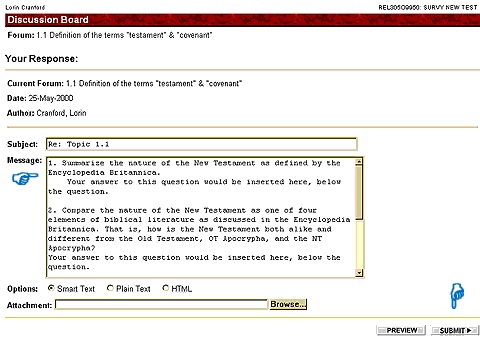
6) Once the e-mail type screen comes up, paste (hit Ctl + V keys together) your answer to this question into the Message field.
7) Then hit the Submit button in the lower right side of your screen and you're done.
8) This activity should be completed by Wednesday evening for each week's assigned work.
The Blackboard Communication page:

The Discussion Board (Forum) page:

The Thread page inside the Discussion Board 1.1 page

This screen will come up once the Thread has been clicked.

This is the e-mail screen.
1) An important part of the weekly participation grade, in addition to the above responsibilities for the assigned questions, is your interaction with all of the questions that have been assigned during a given week.
2) This responsibility will be carried out inside the GWU Blackboard server Discussion Board for your class.1) Open up the GWU Blackboard server at http://gwunet.gardner-webb.edu/, and log into NT Survey using your user id and password.3) This activity should be completed by Sunday for each week's class assigned topics.
2) Click on the Communication icon in the left column, then the Discussion Board icon.
3) Scroll down to the Forum containing the first two numbers of the assigned topics for the class during that week, and click on the first hyperlinked heading.
4) Open up each discussion Thread beginning with the first one. DO NOT click on "Start a New Thread". This will create mass confusion in keeping track of who is answering what question.
5) Click on that Thread, and then the Reply button on the right side.
6) Once the e-mail type screen comes up, type in your materials for this question into the Message field. Several types of materials can be inserted: (a) questions of clarification to the posted answer and/or discussion; (b) a different perspective on the best answer to the question, especially if something has been missed; (c) additional sources of information for answering the question. Any number of things are possible to insert here.
7) Then hit the Submit button in the lower right side of your screen and you're done.
8) Be sure to do this for each of the numbered Threads in each Forum that is a part of a given week's class assignment.
9) You may want to respond to someone else's response. To to so click on the hyperlink Thread that you choose and that begins with RE: in the Subject field.
For pictures of steps 1), 2), 3), 4), 5) see above guideline 4.
The screen after steps 1 through 5 have been
completed; Step 6)

 a division of